
Set up Net Payment Terms
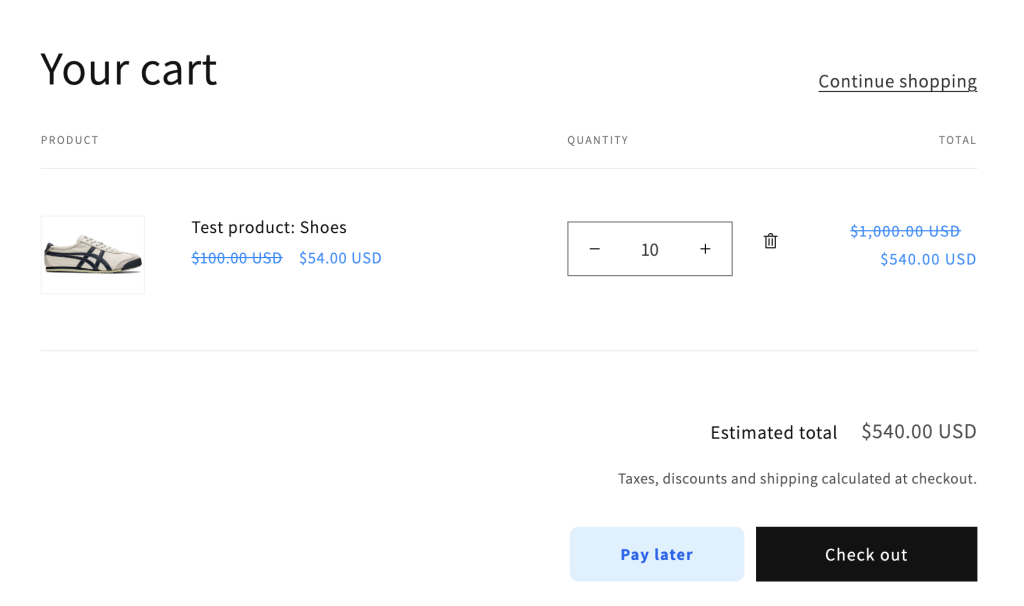
Net Payment Term feature allows your B2B customers to pay for their orders later – on a specific due date listed in the invoice – instead of paying immediately at checkout. Once the feature is active, a Pay Later button will appear on the customer’s cart page.
This guide walks you through how to set up Net Payment Term (e.g., Net 15, Net 30), assigning your customers to specific groups, improve cash flow management, and offer a smoother checkout experience for your wholesale buyers.
Step 1: Create a New Payment Term
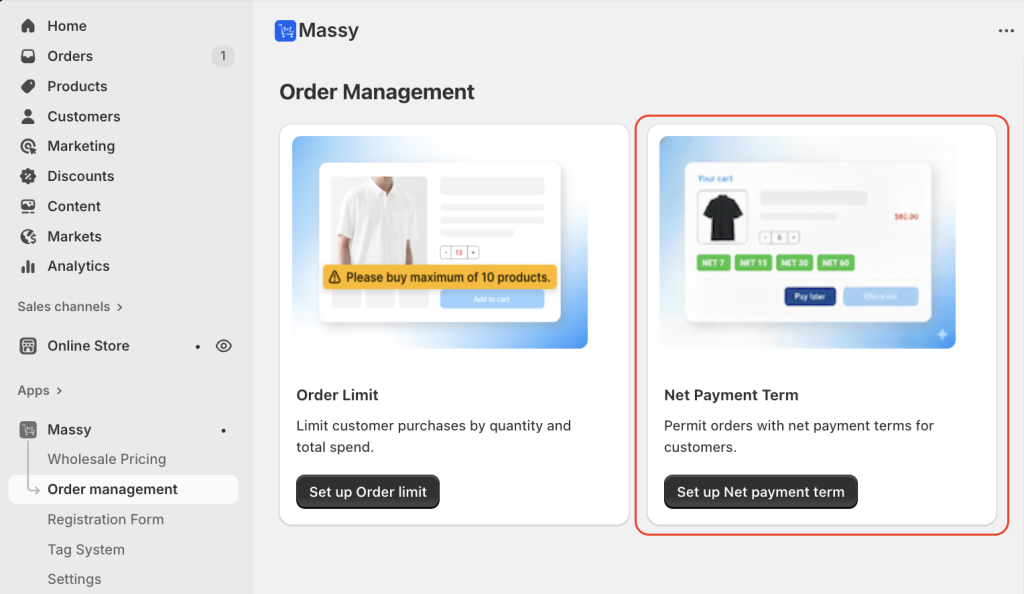
1. Log in to your Shopify admin > Go to Massy > Order management tab > Set up Net payment term.
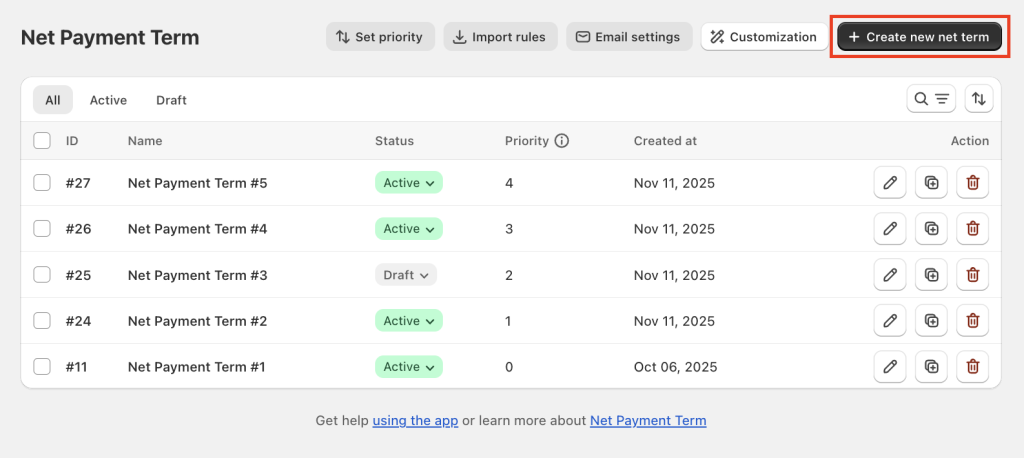
2. To create a new net term, click the Create new net term button.
In the General Information section, configure the following:
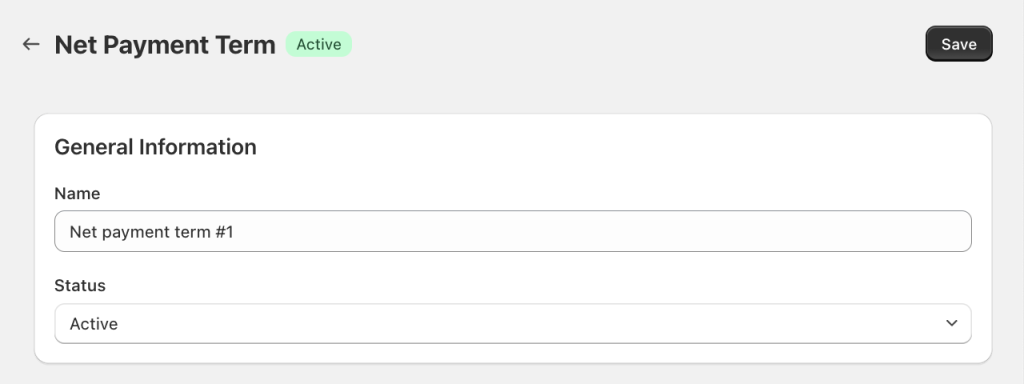
- Name: Enter a descriptive name for your net term rule (e.g., “Net payment term #1”)
- Status: Use the dropdown to select:
- Active: The rule will apply immediately
- Draft: Save the rule without activating it (default: active).
Step 2: Define Customers for Net Term Rule
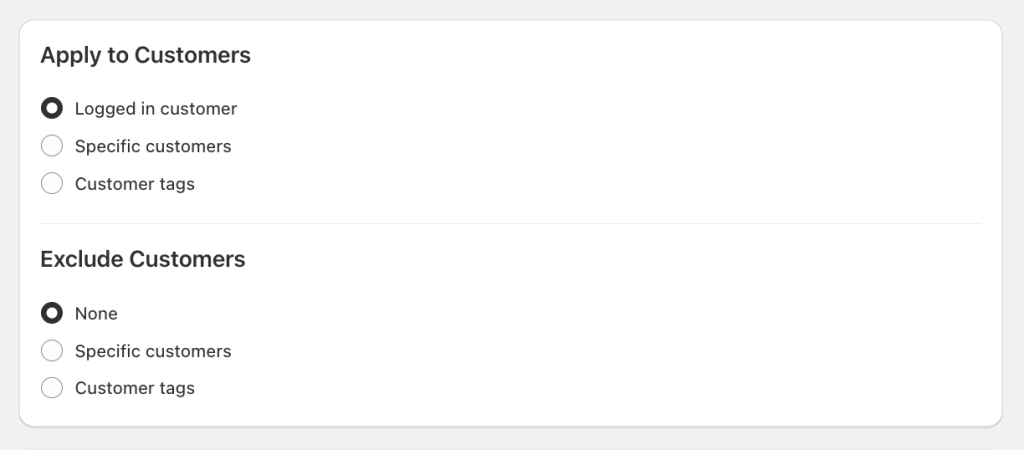
In the Apply to Customers section, select the appropriate option:
- Logged-in Customers: Applies to customers with an account on your store
- Specific Customers: Applies pricing to selected individual customers
- Click Select customers to open a popup displaying registered Shopify customers
- Use the Search Bar to find customers by name or email
- Customer tags: Applies to customers with specific tags
- Use the Search Bar to find customer tags
Exclude Customers: This section appears when you select Logged-in Customers
Options to exclude:
- Specific Customers: Add or select customers to exclude from this rule
- Customer tags: Add or select customers having specific tags to exclude from this rule
Step 3: Define Products for Net Term Rule
To set the products that the pricing rule applies to, configure the Apply to Products section.
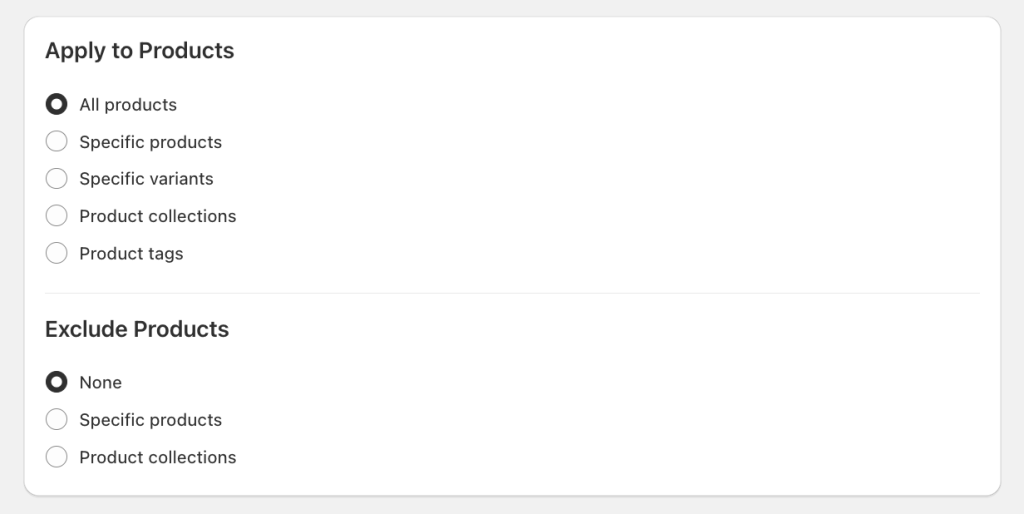
In the Apply to Products section, select the appropriate option:
- All products: Applies pricing to your entire catalog
- Specific products: Click Select Products to open a popup with a searchable list of Shopify products.
- Specific variants: Click Select Variants to browse products and their variants
- Product collections: Click Select Collections to browse and choose Shopify collections
- Product tags: Add tags by typing them into the input field or click Browse to select tags saved in Shopify’s system
Exclude Products:
When applying the rule to All products, you can exclude specific products or groups:
- Specific Products: Click to select and exclude individual products
- Product collections: Use the same selection process as above to exclude specific collections, or tagged products.
By defining applicable and excluded products, you can fine-tune the net term rule to meet your store’s needs.
Step 4: Configure the Net Payment Term Details
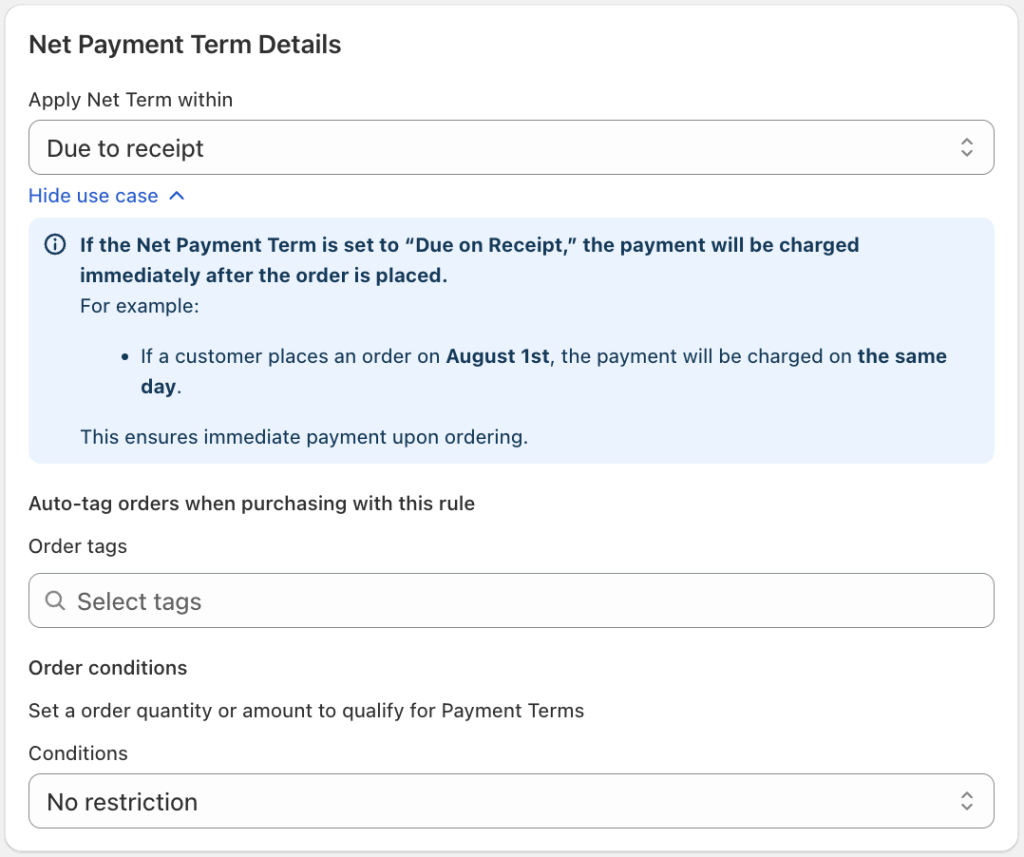
In the Net Payment Term Details section, choose one of the following:
- Apply Net Term within (payment term will apply), available options:
- Due on receipt: payment is charged immediately after the order is placed
- Due on fulfillment: payment is charged when the order is fulfilled
- Within 7 / 15 / 30 / 45 / 60 / 90 days: payment is charged after the selected number of days from the order date
- Due on a specific day of the month: payment is charged on a fixed date in a future month. You must specify both the month offset and the exact charge date
- Custom after checkout: payment is charged after a custom number of days from the order date.
- Auto-tag Orders: automatically tag orders that use this rule
Select or create a tag (for example: net15). When a customer chooses Pay later with this rule, the order will automatically receive this tag.
- Order Conditions: control when a net term payment rule is applied by setting order conditions.
apply the rule only if the order meets a specific minimum/maximum based on Order amount or Order quantity
Step 5: Start/End Date
You can specify a time frame for the net payment term rule to operate:
- Start Date: Set a date when the rule should begin running.
- End Date: Define a date when the rule will stop running.
- Leave these fields blank if the rule should apply indefinitely.
Step 6: Review your settings and Save
Click Save to finalize the net term rule.
When a rule is set to Active, it is applied immediately to all eligible customers.
If a customer meets the conditions of the rule, they will see a Pay later button on the cart page, displayed next to the Checkout button.
If you have any further questions or need additional help, our support team is here to assist you 24/7! You can reach out to us through live chat, or by emailing support@massyapp.io.