
Customize Custom Pricing
This guide explains how to personalize and enhance the appearance of the custom pricing settings for your Shopify store. Follow these steps to create a unique and engaging storefront presentation.
Step 1: Access Custom Pricing customization
To begin customizing your custom pricing:
- Navigate to the Custom Pricing Customization section in your app.

Step 2: Customize General Settings
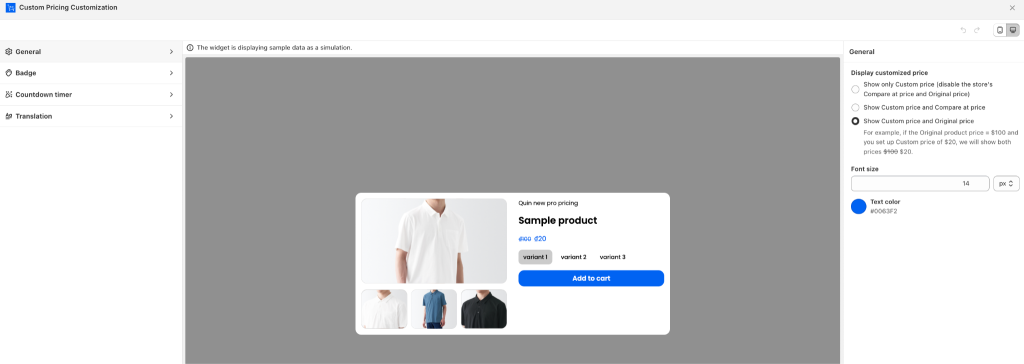
In the General tab, you can define the display preferences for custom pricing on your storefront.
Editable Elements:
- Display Customized Price:
Select how pricing is shown to customers:- Show only Custom price: Hides the original price and compare-at price, displaying only the custom price.
- Show Custom price and Compare-at price: Displays the custom price alongside the compare-at price.
- Show Custom price and Original price: Displays the custom price alongside the original price.
- Font: Choose the text font for the custom pricing display from your store’s available font options.
- Text Color: Set the color of the custom pricing text to align with your branding.
Step 3: Add a Badge to Highlight Discounts
In the Badge tab, create a badge to showcase discounts effectively.
Editable Elements:
- Badge Text:
Customize the badge text to reflect the discount. Use {{discount}} to automatically calculate the discount percentage or value. Example: “Save {{discount}}” → Displays as “Save 20%”. - Background Color:
Choose a background color that contrasts with your store’s theme. - Text Color:
Define the badge text color for better visibility. - Enable Badge: Tick the box to display the badge on product pages.

Step 4: Add a Countdown Timer
In the Countdown Timer tab, create urgency for offers by displaying a timer.
Editable Elements:
- Timer Duration:
Set the countdown duration in hours and minutes (e.g., 30:00 for 30 minutes). - Timer Text:
Customize the text displayed with the timer (e.g., “Offer ends in:”). - Border Radius:
Adjust the shape of the timer’s edges by modifying the border radius. - Text Size:
Set the font size of the timer text for optimal readability. - Colors:
- Timer Text Color: Adjust the color of the timer text.
- Timer Background Color: Set the background color for the timer box.
Enable Countdown Timer:
Tick the checkbox to display the countdown timer on product pages.

Step 5: Translation
The Translation feature allows you to customize the text displayed in your promotional badges and countdown timers for different languages. You can add translations for multiple languages to make your promotions accessible to more customers.

How to add a language:
- Go to the Translation section.
- Click Add language.
- Select the language you want to add.
- Enter the translated text for the available fields.
- Save your changes.
Step 6: Preview Your Changes
The right-side preview panel provides a live simulation of how your custom pricing, badge, and countdown timer will appear on your storefront. Use this panel to ensure your adjustments meet your expectations.
Step 7: Save Your Customizations
After finalizing your customizations:
- Click the Save button in the top-right corner.
- Your updates will be applied to the storefront immediately.
If you have any further questions or need additional help, our support team is here to assist you 24/7! You can reach out to us through live chat, or by emailing support@massyapp.io.