
Create a New Tag Rule
Creating and configuring a tag rule helps automate the application or removal of tags for customers and orders, making store management more efficient. Follow these steps to set up a tag rule in your store.
Step 1: Navigate to the Tag System
To create a new tag rule, first, access the Tag System in your store:
- Go to Shopify Admin.
- Navigate to Apps > Massy.
- Click on the Tag System tab.
- Click Create New Tag Rule to start setting up your rule.
Step 2: General Information
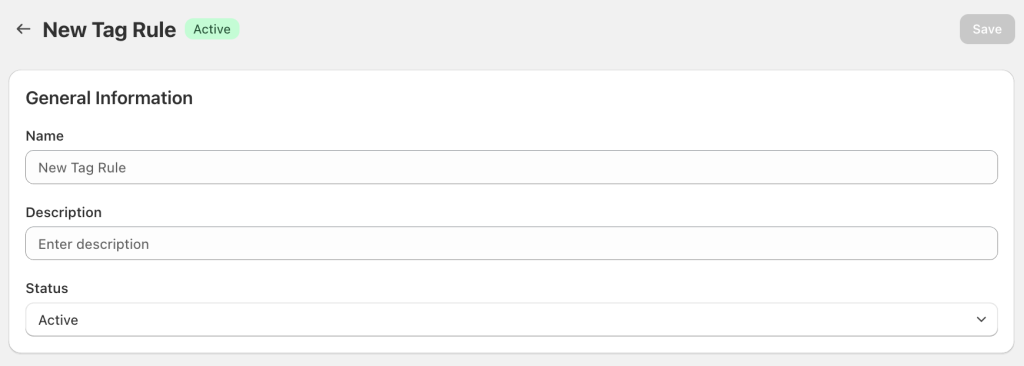
Begin by entering the basic details of your tag rule:
- Name: Provide a clear, descriptive name.
Example: “VIP Customer Tag” or “High-Value Orders”
2. Description (Optional): Add details to explain the rule’s purpose.
Example: “Automatically tags customers who spend over $1,000 as ‘VIP’.”
3. Status
- Active – The rule will start running immediately after saving.
- Inactive – The rule will be saved but won’t run until manually activated.
Step 3: Select a Trigger Event
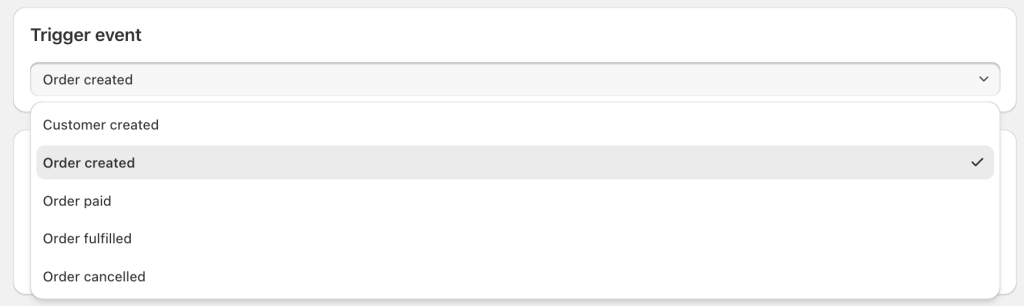
Choose the event that will activate the tag rule:
1. Customer-Related Events
Customer Created – Triggers when a new customer account is created. Optionally, apply it to a specific registration form or all new customers.
2. Order-Related Events
- Order Created – Triggers when a new order is placed.
- Order Paid – Triggers when payment is successfully processed.
- Order Fulfilled – Triggers when the order is fulfilled and shipped.
- Order Cancelled – Triggers when the order is canceled.
Step 4: Define Tag Conditions
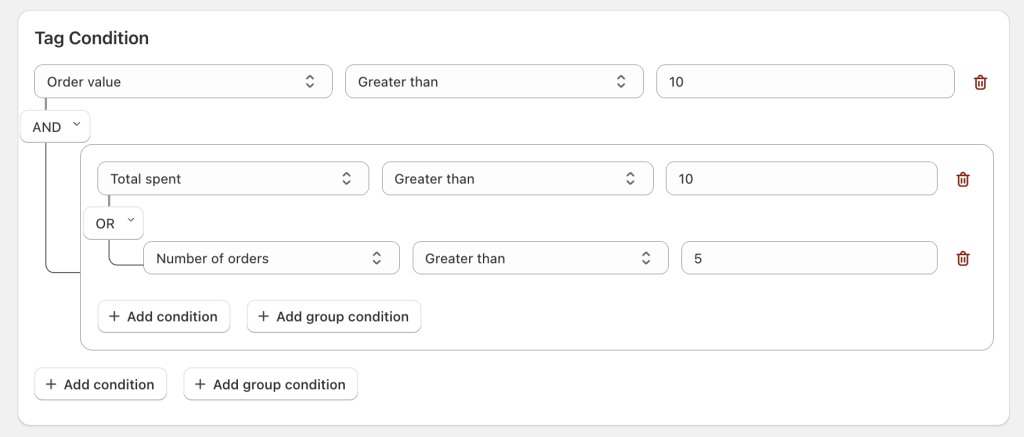
Set the conditions under which the rule applies using the AND/OR Logic Selector:
1. Define Conditions
Use dropdown menus to specify the conditions:
- Example: “Full Name contains ‘John'”
- Example: “Order Total is greater than $500”
- Example: “Email ends with ‘@domain.com'”
2. Combine Conditions with Logic
- AND Logic – All conditions must be met.
- Example: “Customer Country is ‘USA’ AND Total Spend > $1,000.”
- OR Logic – Only one condition must be met.
- Example: “Order Total > $500 OR Order contains a specific product.”
3. Behavior of Logic Operators
- AND: All conditions in the group must be true.
- OR: Only one condition in the group must be true.
Step 5: Define Actions
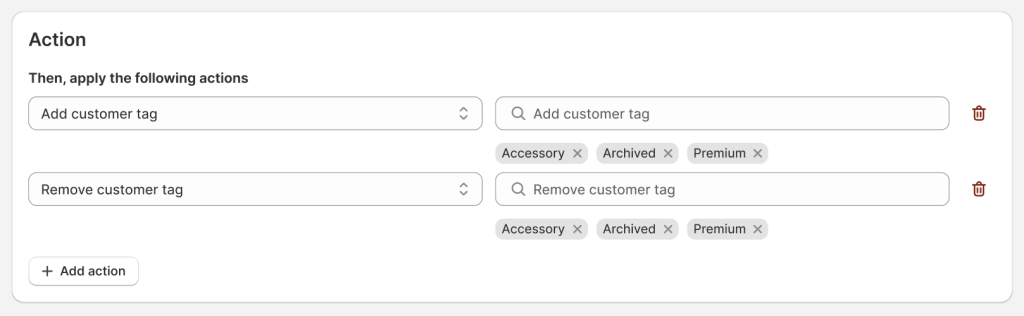
Choose what happens when the conditions are met:
- Add Tags – Assign one or more tags to customers/orders.
- Example: “VIP” tag for high-spending customers.
- Remove Tags – Remove tags that are no longer relevant.
- Example: “New Customer” tag is removed when a customer qualifies as “Loyal Customer.”
Step 6: Set Start and End Dates
You can define a time frame for when the tag rule is active:
- Start Date – The rule begins running on this date.
- End Date – The rule stops running on this date.
- Leave both fields blank for the rule to run indefinitely.
Step 7: Save and Activate
After configuring all settings:
- Click Save to finalize the rule.
- If the rule is Active, it will immediately begin processing based on the selected triggers and conditions.
If you have any further questions or need additional help, our support team is here to assist you 24/7! You can reach out to us through live chat, or by emailing support@massyapp.io.