
Customize Volume Pricing
This guide explains how to personalize the appearance and text of the Volume Discount Pricing Table to match your store’s branding and provide a seamless user experience.
Follow the steps below to get started with customizing your pricing table.
Step 1: Access Volume Pricing Customization
- Navigate to Volume Discount tab.
- Click on the Customization button on the top right corner button.
- You can choose to customize Basic Pricing Table or Advanced Pricing table on top of the page

- Here is the side to side comparison between Basic Pricing Table and Advanced Pricing Table:

- For each table, you will see 3 tabs: General, Design, and Translation. Use these tabs to configure the widget’s visual elements and text content.
Step 2: Customize General
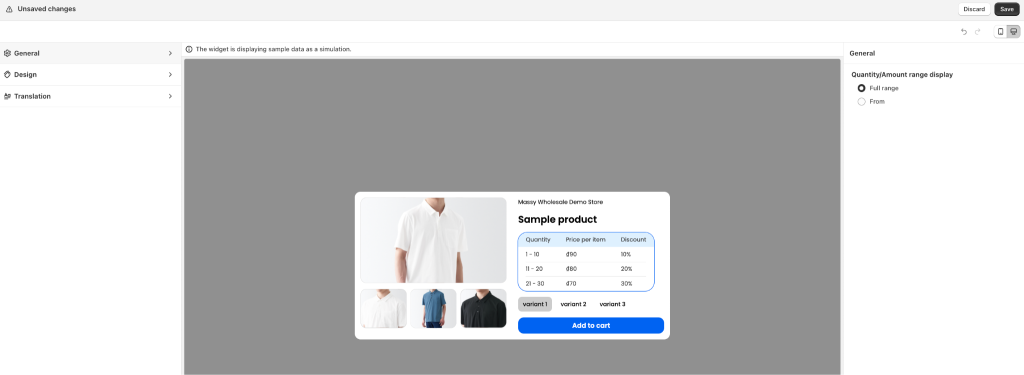
In the General tab, configure where the pricing table is displayed and how it behaves:
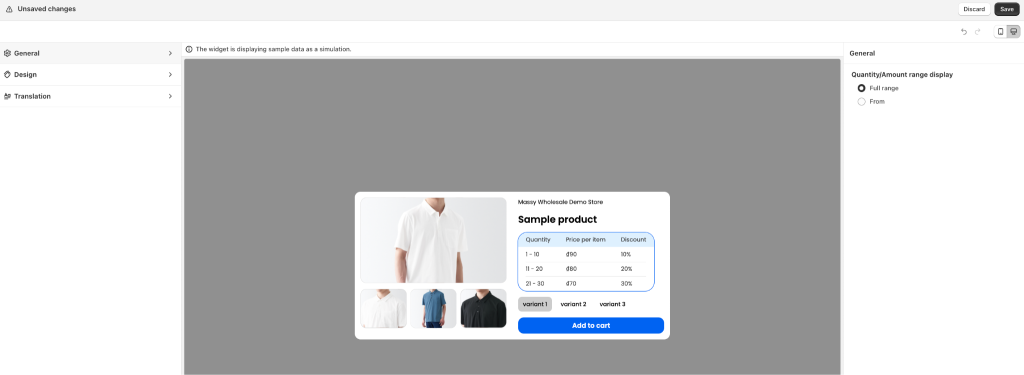
- Range Display Options: Choose between displaying the “Full range” or a “From” range.
Step 3: Customize Design
In the Design tab, you can customize:
- Header Text Size: Adjust the size of the header text using a dropdown (measured in pixels).
- Text Size: Adjust the size of the text using a dropdown (measured in pixels).
- Border radius: Adjust the size of the border (measured in pixels).
- Color Settings: Customize the following elements to match your branding:
- Header Text Color: Color of the widget’s header text.
- Header Background Color: Background color behind the header.
- Text Color: Color of text in the pricing table (Default text, On-hover text, On-click text).
- Divider color: Color of the divider between each variant of the table.
- Border color: Color of the border of the box.

Step 4: Customize Translation
In the Translation tab, you can customize:
- Quantity header: Set the name for the column of quantity selector (e.g., “Quantity”).
- Amount header:
- Price per item header: Change the text of Price per item.
- Discount header: Change the text of Discount column
- Total header: Change the text of Total.
Add language: You can add translations for multiple languages to make your promotions accessible to more customers.
How to add a language:
- Go to the Translation section.
- Click Add language.
- Select the language you want to add.
- Enter the translated text for the available fields.
- Save your changes.

Step 5: Preview Changes
- A Preview Panel of the pricing table is available at the center of the screen.
- Use this panel to view updates to your widget’s design and text in real-time.
Note: The preview panel is only displaying the sample data.
- Test your changes before saving.
Step 7: Save Customizations
- Once you’ve finalized your updates, click the Save button in the top-right corner.
- Your changes will be applied, and the updated pricing table will be displayed on your product page.
With these steps, you can ensure your pricing table aligns with your branding and enhances the customer experience.
If you have any further questions or need additional help, our support team is here to assist you 24/7! You can reach out to us through live chat, or by emailing support@massyapp.io.