
Set Priority for Custom Pricing Rules
Set Priority for Custom Pricing Rules feature enables you to control which pricing rule takes precedence when multiple rules could apply to the same products or customers. By defining rule priority, you ensure that the most important pricing adjustments are applied first, resolving any conflicts automatically.
Overview
- Rule Priority: The pricing rule at the top of the list has the highest priority. Rules lower on the list are applied only if no higher-priority rule applies.
- Conflict Resolution: When multiple pricing rules are triggered at the same time, the rule with the highest priority is executed first.
Follow these steps to manage and set priority for your volume pricing rules:
Step 1: Access the “Set Priority for Custom Pricing Rules” Section
- Navigate to Custom pricing tab.
- Click on the Set Priority on the top right corner button.
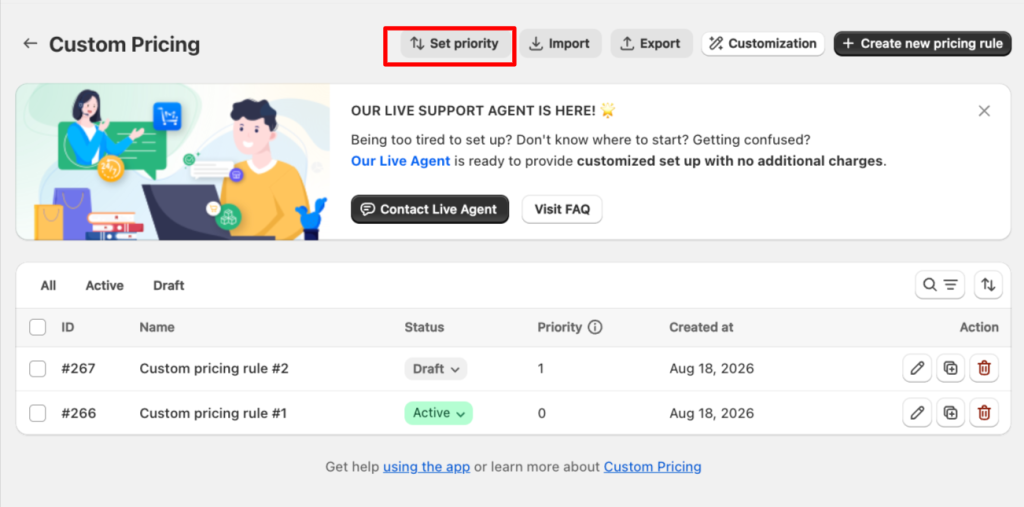
Step 2: Change Rule Priority
To adjust the priority:
- Use the up arrow to move a rule higher in the list and increase its priority.
- Use the down arrow to move a rule lower in the list and decrease its priority.
- Arrange the rules in the order you want them to be applied.
- Click Apply to save the new priority order.
- If you do not want to save your changes, click Cancel.
Note: When two or more rules apply to the same products or customers, the rule positioned higher in the priority list takes precedence.
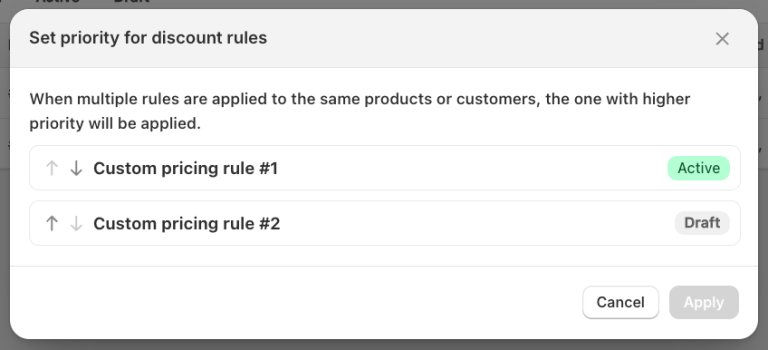
Step 3: Save Changes
Once you have arranged the rules in the desired priority order, click the Apply button to save your changes. The system will automatically update the rule execution order based on your new priorities.
Example Use Case
You have two custom pricing rules:
- Rule A: Applies a 20% discount to customers who purchase more than $500.
- Rule B: Applies a 10% discount to all customers.
If both rules are triggered for the same customer, you can set Rule A (20% discount) as the higher priority. This ensures that the 20% discount is applied first, overriding the 10% discount in case of a conflict.
If you have any further questions or need additional help, our support team is here to assist you 24/7! You can reach out to us through live chat, or by emailing support@massyapp.io.